

Products
The Product tab within EasyStore empowers you to finely tune how your products are presented and reviewed on your eCommerce website.
Shop Page
Shop Page: From the provided dropdown menu, select the designated shop page for your products. This page will serve as the primary showcase for your merchandise.
Standards
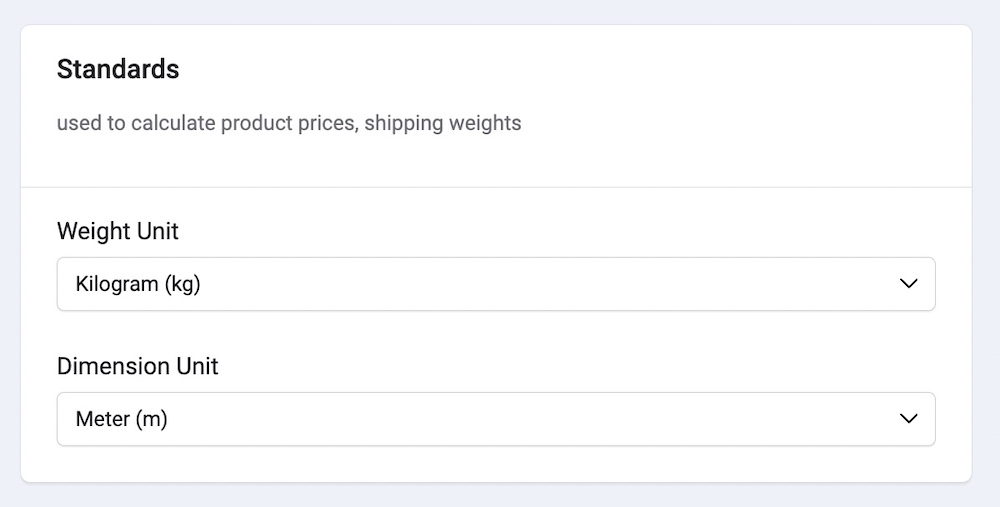
Weight Unit: Here, you can choose the unit of measurement for product weights from the dropdown, such as Kilograms (KG) or Pounds (LB).
Dimension Unit: Choose the unit of measurement for product dimensions, such as Meters (M) or Inches (IN).
Variation Library
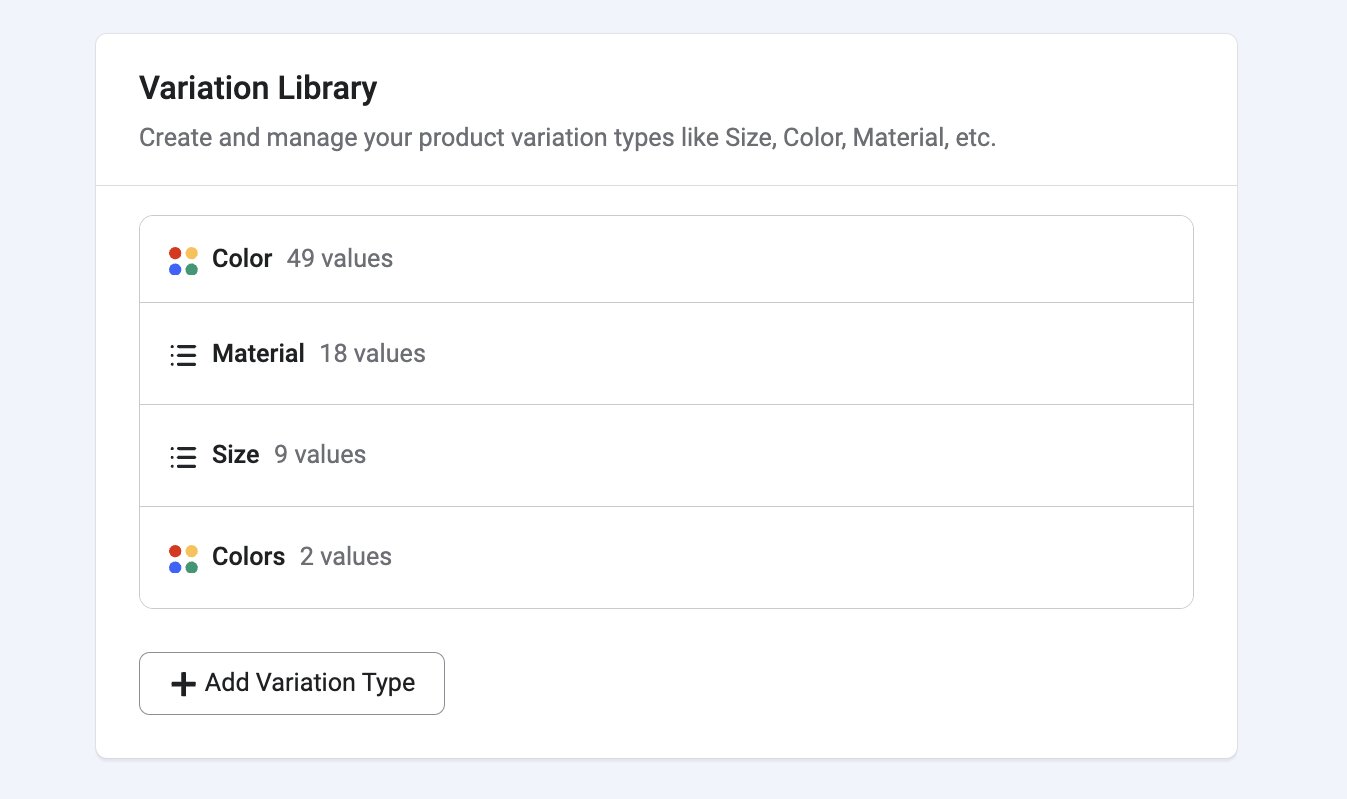
The Variation Library in product settings lets you customize and manage product variant types such as “Size”, “Material”, “Color”, and more.
Create a variation by:
-
Pressing the + Add Variation Type button.
-
Enter a title for the variation and click Save.
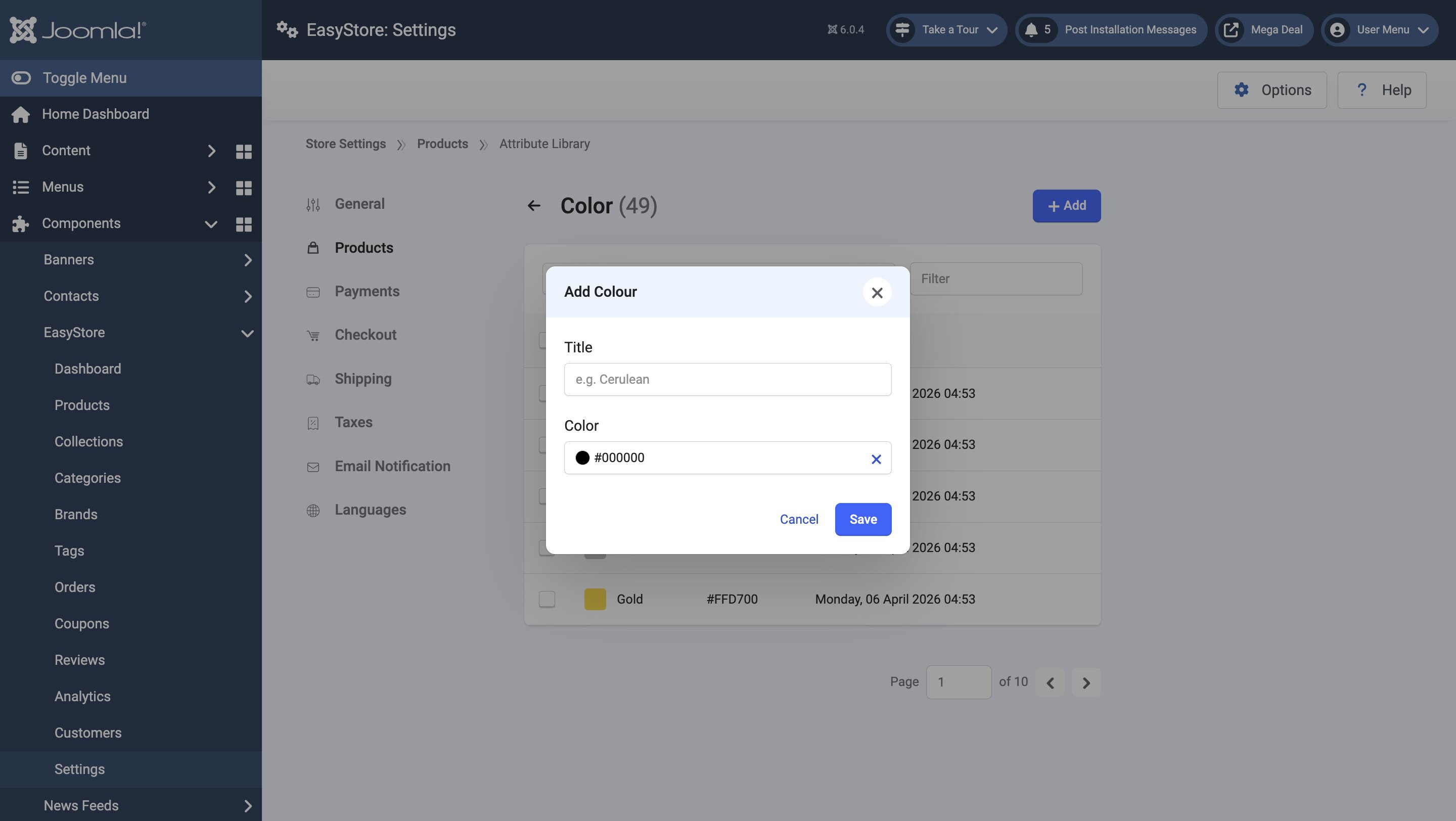
To create Variation Values, click on the Variation Type and then click on + Add.
- If your Variation Type is Color, then you will be able to define the “Title” and “Color” (in hex code) of the value.
- If the Variation Type is a List, then you will only be able to define the “Title” of the value.
Variant Configuration

The Variant Configuration in product settings allows you to customize and manage product variant options to fit your specific requirements.
Display Layout: Choose a format for displaying your product variants on the product details page. You can choose from two options: List View and Dropdown Menu.
Reviews
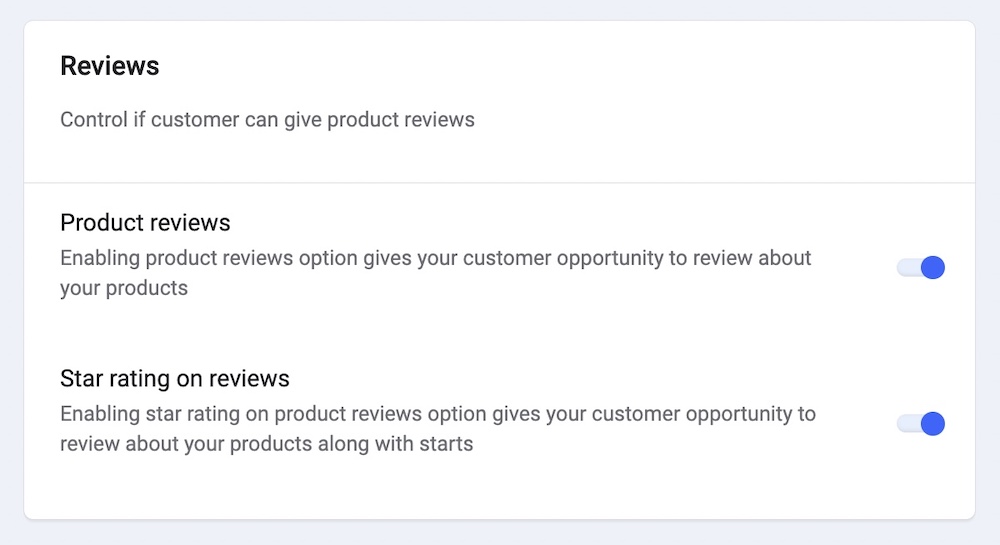
Product Reviews: Toggle this option on or off to control whether customers can provide reviews for products.
Star Rating on Product Reviews: This setting allows you to enable or disable star ratings within customer product reviews.
Once you’re done, click "Save Changes" to apply and save your product settings.
Pricing
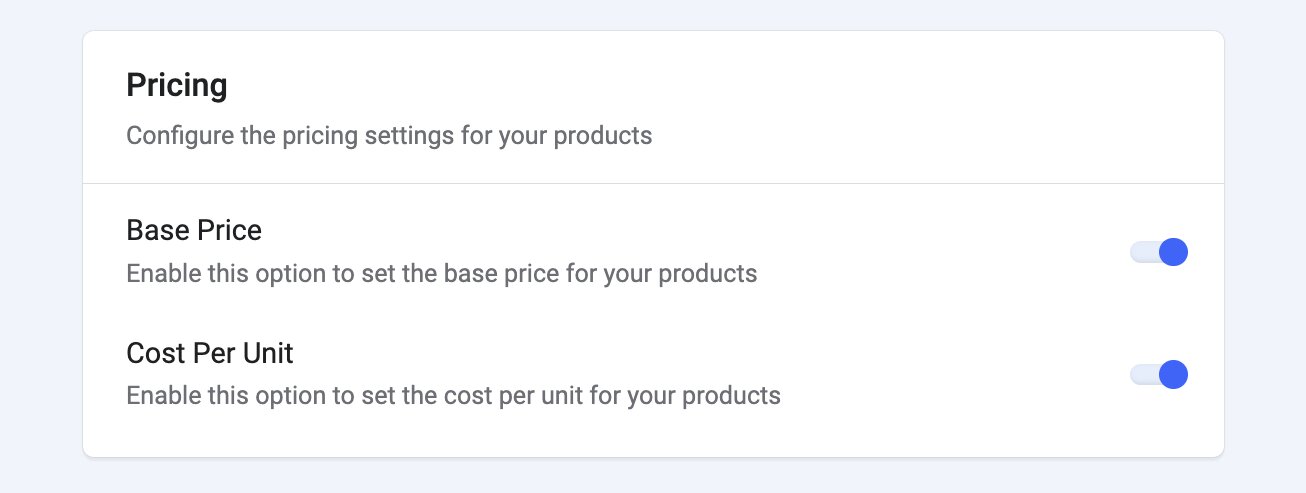
Base Price: Enabling this option lets you set the base price for your products, calculated per standard unit of measurement, particularly kilograms (kg), grams (g), pounds (lb), or ounces (oz). By enabling this, you can display the comparison between the selling price and the price per unit of measurement on your store page.
Cost Per Unit: By enabling this setting, you can establish the price required to manufacture and deliver a specific product. Essentially, Cost Per Unit entails:
- Production and manufacturing costs
- Packaging and shipping costs
- Other variable and fixed expenses
When enabled, you can set the cost per unit value when adding a product. You’ll be able to monitor product costs and assess their profitability relative to the regular price.