
Shipping
In the "Shipping" section, you can efficiently manage shipping, delivery, and pickup options for specific regions. This customization ensures that you provide tailored shipping solutions to meet your customers' needs. Video tutorial: https://www.youtube.com/watch?v=oku2t48dJZ4
Regional Shipping
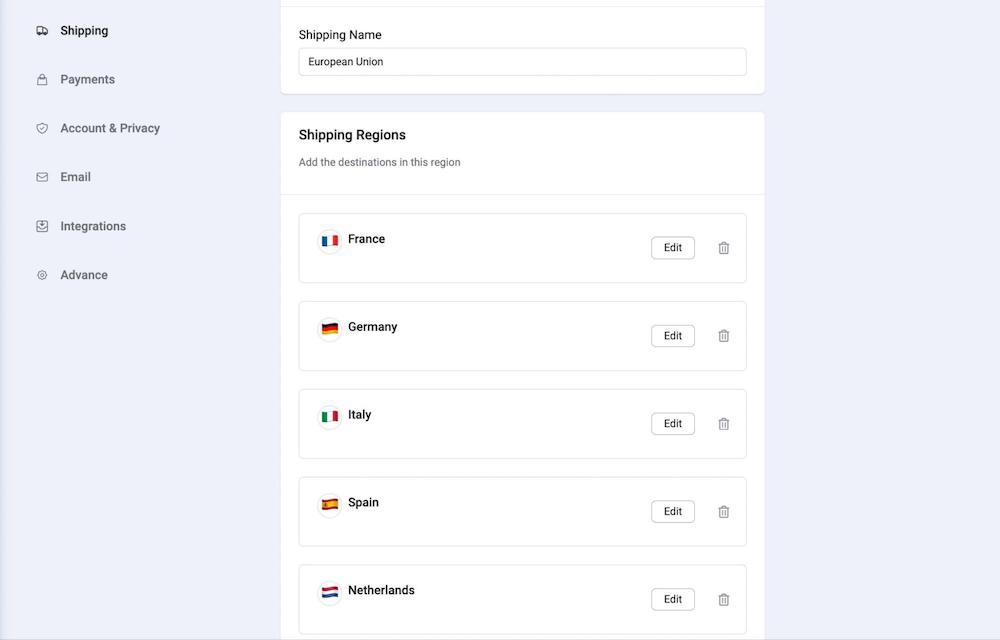
EasyStore lets you create a shipping region with a single destination or group of destinations, where you can manage shipping, delivery, and pickup options collectively.
Shipping Name: Define a name for the regional shipping area, for example: “European Union”.
Shipping Regions: Specify the countries or states included in this shipping region from the dropdown.
Click on Apply to save the shipping regions.
Shipping Method
EasyStore provides flexible shipping options to cater to your customer's preferences. You can efficiently manage these shipping methods to offer a seamless and convenient shopping experience:
- Flat Rate
- Free Shipping
- Rate by Weight
Flat Rate
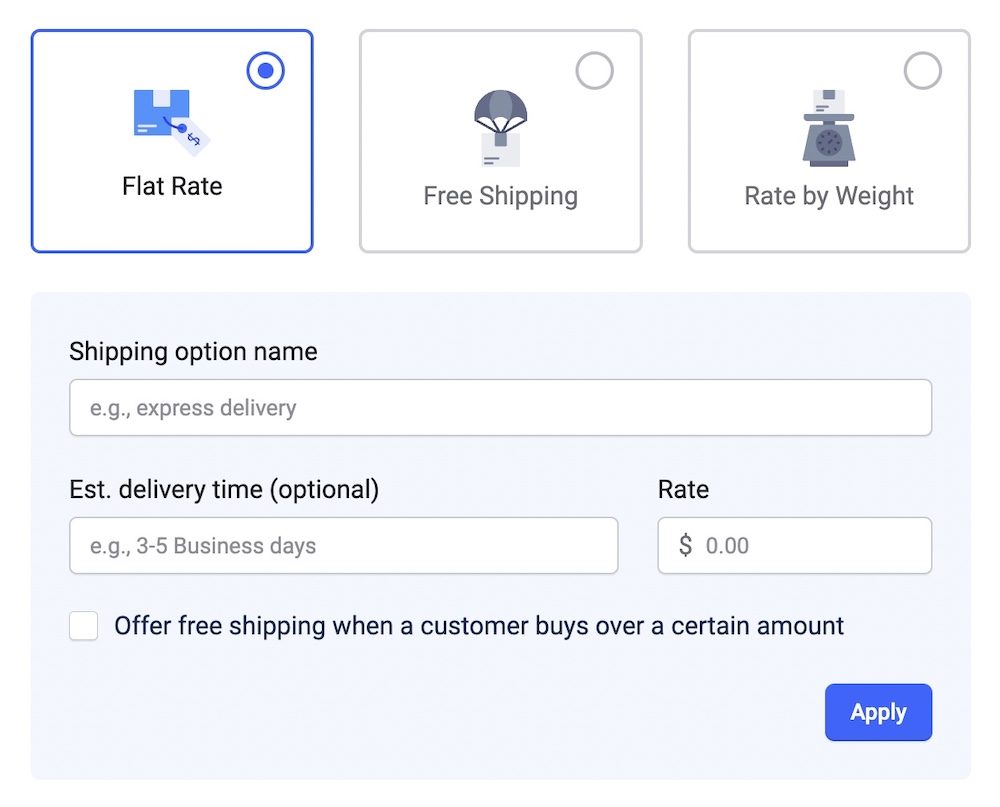
Shipping Option Name: Specify the name for the flat-rate shipping method.
Est. Delivery Time (Optional): Optionally, provide an estimated delivery time for this shipping option.
Rate: Set the flat rate for shipping in your preferred currency (e.g., $10).
Offer Free Shipping When a Customer Buys Over a Certain Amount: Check this option to provide free shipping for orders that exceed a specified amount.
Click on Apply to save your flat-rate shipping configuration.
Free Shipping
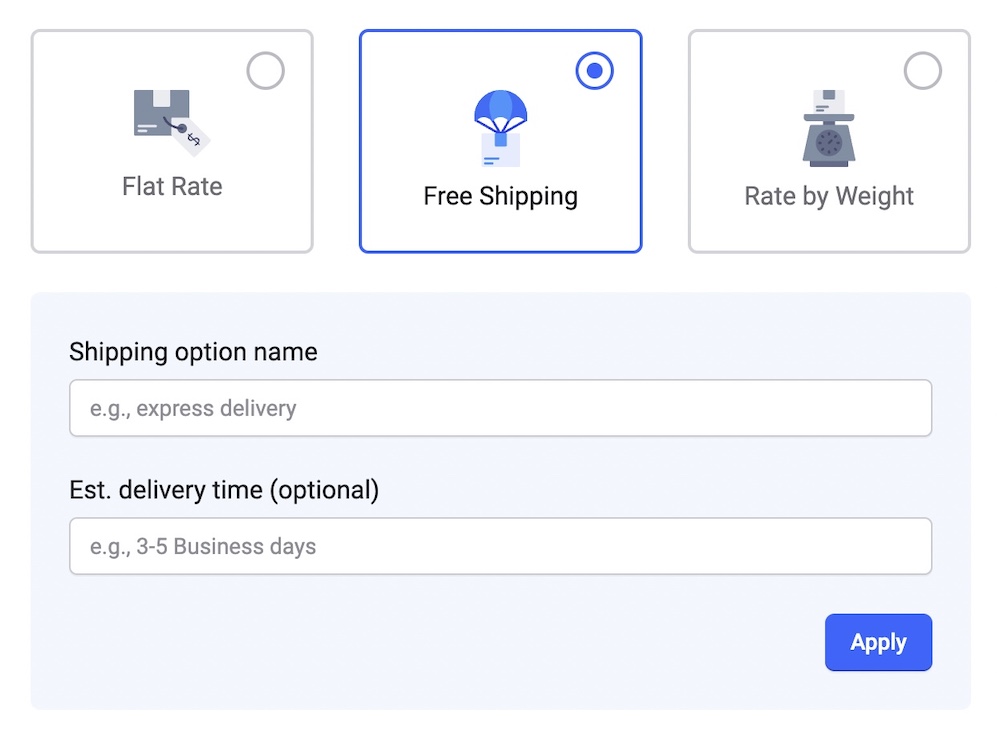
Shipping Option Name: Define the name of the free shipping method.
Est. Delivery Time (Optional): Optionally, indicate an estimated delivery time.
Click on Apply to save your free shipping configuration.
Rate by Weight
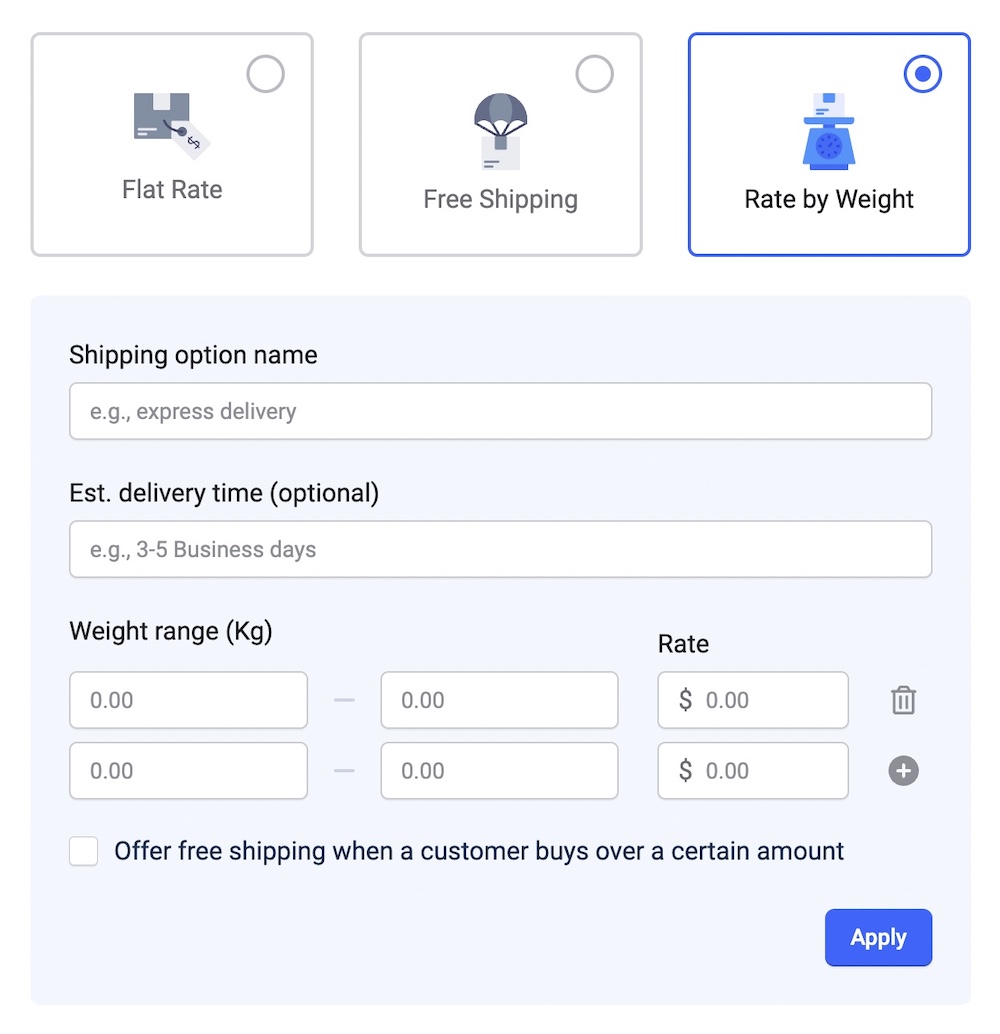
Shipping Option Name: Provide a name for the rate-by-weight shipping method.
Est. Delivery Time (Optional): Optionally, enter an estimated delivery time.
Weight Range (Kg): Define the weight range to which this shipping rate applies (e.g., 0-5 Kg). Click on the + icon to add multiple weight ranges.
Rate: Set the shipping rate for the specified weight range in your preferred currency (e.g., $5).
Offer Free Shipping When a Customer Buys Over a Certain Amount: Check this option to provide free shipping for orders that exceed a specified amount.
Click on Apply to save your rate-by-weight shipping configuration.
Shipping Packages
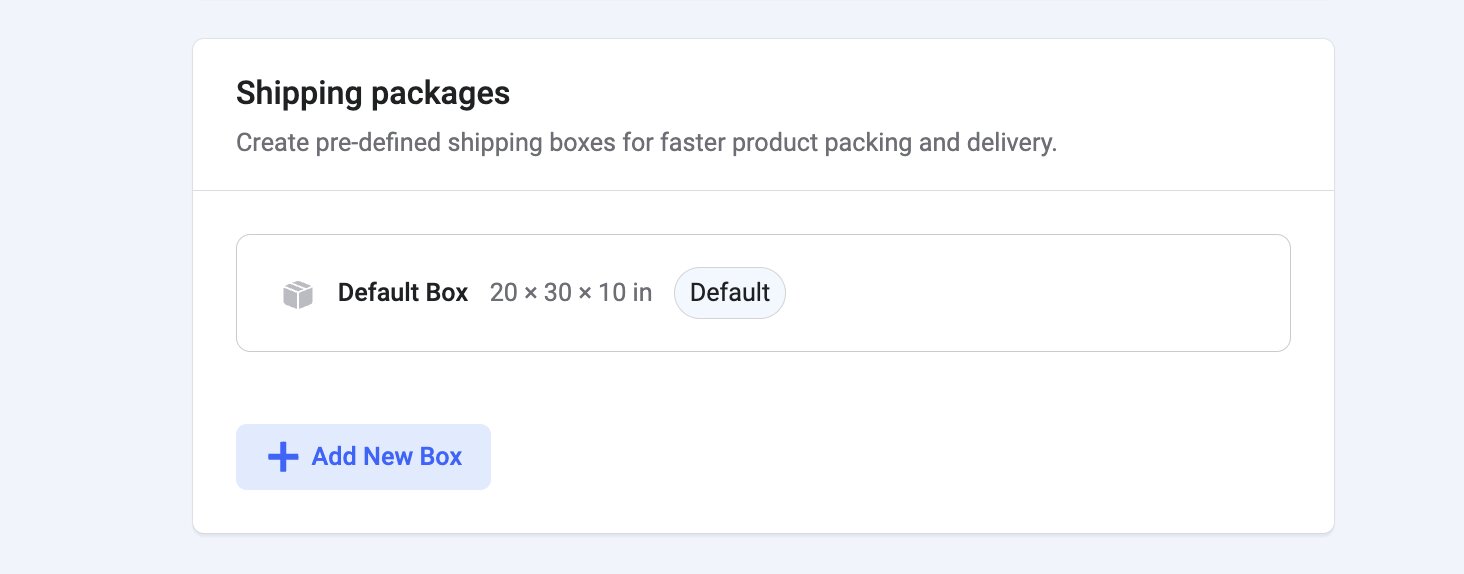
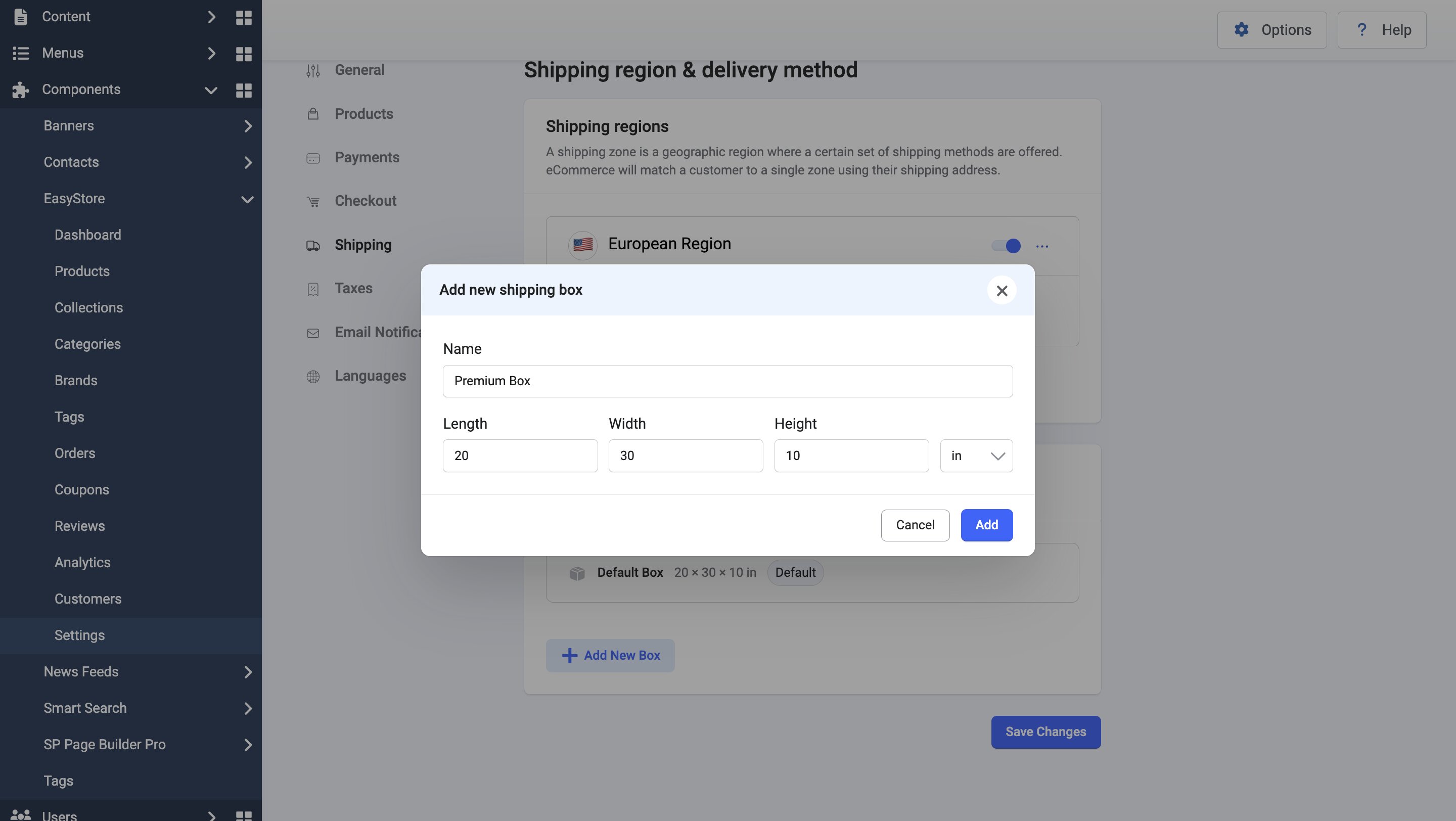
This option allows you to develop pre-set shipping options for more efficient product packaging and shipment. Dimensions of the package can be set in inches, centimeters, or meters.
Note: When creating shipping packages, you should input the dimensions of the box, not the actual dimensions of the product itself. Additionally, you cannot set up shipping packages unless you have already completed other shipping configurations, such as defining shipping regions and methods.
Click on + Add New Box to configure the shipping box settings, such as:
- Name: Provide a name for the shipping package.
- Length: Define the length of the shipping box.
- Width: Set the width of the shipping box.
- Height: Define the height of the shipping box.
- To change the measurement unit, use the unlabeled dropdown menu next to the "Height" option. You can select inches (in), centimeters (cm), or meters (m).
- Click Add to save your configuration.
You can edit or delete any created shipping box later on. In order to do that, you need to:
- Hover over to the right side of the existing package and click on the three-dot icon. Click on Edit to make changes to the package, and Delete to remove it.
- If the “Edit” option is selected, you can change the name and dimensions of the package, or change the measuring unit via the dropdown menu. Afterwards, click Save.